Claude Code, powered by Codex: my Magpie setup
Download the Magpie bridge skill, install it in Codex or Claude Code, and follow a step-by-step macOS setup for Codex subscriptions, the gpt-claude launcher, and Fast mode.
I wanted to use my Codex subscription from Claude Code. Then the practical questions followed: how do I keep the local gateway running, give it a menu bar icon, launch it with a short command, and turn on Fast mode without abandoning a conversation?
The setup I ended up with uses one Magpie desktop app, a small gpt-claude launcher, and two ways to request Fast. This is a record of what I configured and checked on macOS on November 4, 2026.
Start here: download, install, and run the skill
Download the Magpie bridge skill ZIP · SHA-256 checksum · Read the source
The package gives your coding assistant the setup procedure and a gpt-claude launcher template. Follow these steps on the Mac where you will use Claude Code. You can use a working Codex session to bootstrap the connection; if Claude Code cannot send messages yet, do the setup from Codex.
1. Download the package
Use the ZIP link above, or run this in Terminal:
mkdir -p "$HOME/Downloads"
curl -fL https://kevin1988.fun/downloads/magpie-bridge.zip \
  -o "$HOME/Downloads/magpie-bridge.zip"
curl -fL https://kevin1988.fun/downloads/magpie-bridge.zip.sha256 \
  -o "$HOME/Downloads/magpie-bridge.zip.sha256"
(cd "$HOME/Downloads" && shasum -a 256 -c magpie-bridge.zip.sha256)
The checksum should print magpie-bridge.zip: OK. You can inspect the package with unzip -l "$HOME/Downloads/magpie-bridge.zip". It contains:
magpie-bridge/
├── SKILL.md                  # Procedure the assistant follows
├── agents/openai.yaml       # Codex skill-picker metadata
└── assets/gpt-claude        # Launcher template to adapt and install
2. Install it in the assistant you will use for setup
Pick the appropriate client below. These are first-install commands. For an upgrade, move your existing magpie-bridge folder to a backup location outside all skill directories before extracting the new package. Keep only one installed copy per client, including across Codex search locations. unzip -n does not overwrite existing files; it is not an update command.
Codex CLI or IDE: install in the personal skills directory documented by OpenAI Docs.
mkdir -p "$HOME/.agents/skills"
unzip -n "$HOME/Downloads/magpie-bridge.zip" -d "$HOME/.agents/skills"
test -f "$HOME/.agents/skills/magpie-bridge/SKILL.md" && echo "Skill installed"
Claude Code: install in its personal skills directory.
mkdir -p "$HOME/.claude/skills"
unzip -n "$HOME/Downloads/magpie-bridge.zip" -d "$HOME/.claude/skills"
test -f "$HOME/.claude/skills/magpie-bridge/SKILL.md" && echo "Skill installed"
The final path must end in skills/magpie-bridge/SKILL.md, with the assets directory beside that file. Do not move only SKILL.md or accidentally create magpie-bridge/magpie-bridge/SKILL.md.
3. Start a session and ask the skill to set up the connection
Open a new local session of your chosen assistant. The following is a message to the assistant, not a shell command.
In Codex CLI / IDE, paste:
$magpie-bridge Set up Claude Code to use my Codex subscription on this Mac.
Use one Magpie desktop app, enable login startup and local Web access,
and install gpt-claude plus a gcl shortcut. Preserve my existing global
Claude settings. Check which Codex models my account offers before
choosing the default. Keep Fast opt-in with --fast. Run a short request
to verify the connection, then show me the commands to use each day.
In Claude Code, paste the same request with its slash-command invocation:
/magpie-bridge Set up Claude Code to use my Codex subscription on this Mac.
Use one Magpie desktop app, enable login startup and local Web access,
and install gpt-claude plus a gcl shortcut. Preserve my existing global
Claude settings. Check which Codex models my account offers before
choosing the default. Keep Fast opt-in with --fast. Run a short request
to verify the connection, then show me the commands to use each day.
For a desktop client with a skill picker, select magpie-bridge and send the same setup request. In Codex CLI, /skills or typing $ lets you check discovery; in Claude Code, type /magpie-bridge. If it is missing, check the folder path and start a fresh session. The ZIP installs instructions and a template; the assistant still needs to carry out the setup. It will check the app and CLIs, back up affected files, confirm a usable Codex account, and adapt the launcher. Complete any required account sign-in yourself when prompted.
4. Verify the result and use the launcher
The assistant should finish with the installed command paths, the selected codex/... model, and evidence of a successful request. In a fresh terminal, these should now work:
gpt-claude --help
gpt-claude
gpt-claude --fast
gcl --fast -w feature-name
Run the worktree command from a Git repository. --fast takes effect for the process you launch with it. The first setup request above leaves Fast opt-in; you can explicitly ask the assistant to test it with:
$magpie-bridge Verify gpt-claude --fast with one short request.
Show the requested, sent, and upstream-reported tiers from Magpie.
Do not enable the model-wide Fast setting.
Use /magpie-bridge instead of $magpie-bridge when sending that request in Claude Code. Expect the agent to report the real result, including an unreported upstream tier, rather than simply say that Fast is on.
5. Enable Fast for a session that is already running
In Magpie, open Agents → Claude Code → model picker, find the model used by that session, and turn on ⚡ Fast. The next model request uses the setting; an in-flight response is unchanged. This affects all Claude Code sessions using that model, not just the one window you are looking at.
For an assistant-led check first, send:
$magpie-bridge Check which model my active Claude Code sessions use.
Explain which sessions would be affected by Magpie's Fast switch.
Do not change the setting yet.
Once that scope matches what you want, ask it to enable Fast for the confirmed client-and-model combination. The rest of this post explains the components, configuration choices, and checks behind this procedure.
The three parts of the setup
Claude Code is the client: it provides the terminal interface and the coding workflow. Magpie receives its requests and translates them for the selected provider. The Codex account supplies access to the model through my existing ChatGPT subscription.
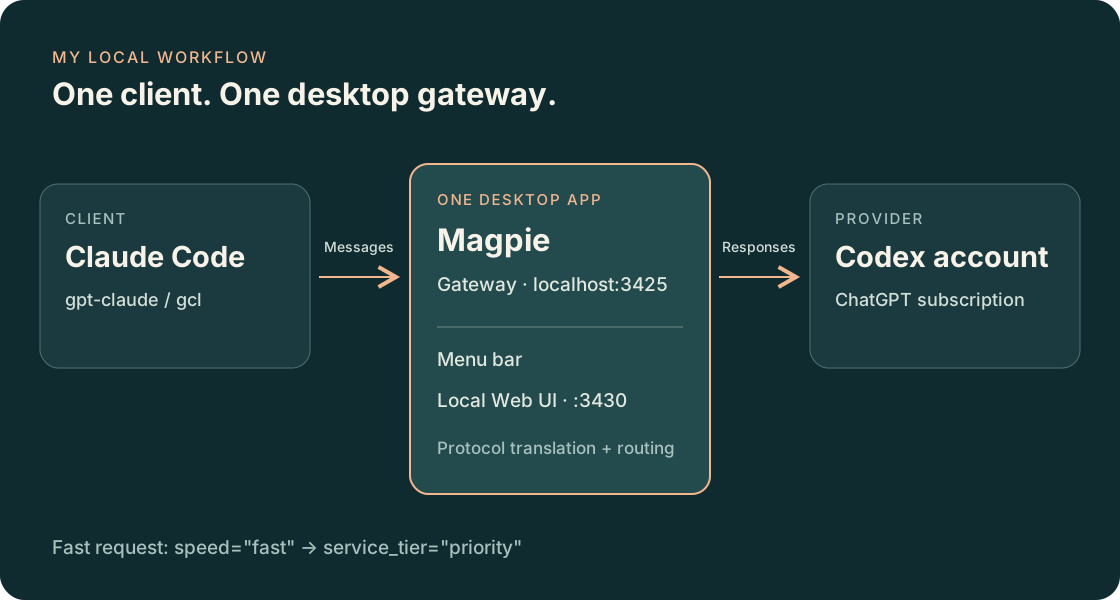
The distinction matters because using Codex as a provider does not require routing the Codex client through Magpie too. For this workflow, Claude Code is the client I need to connect.
The addresses in this post are from my local configuration:
| Address | Purpose |
|---|---|
http://127.0.0.1:3425 |
Model gateway used by Claude Code |
http://127.0.0.1:3430/ |
Optional browser management interface |
The model ID has a provider prefix, such as codex/gpt-6-astra. Use a model that Magpie actually lists for your account. The prefix is part of the route; an arbitrary model name is not a substitute for a working account.
Keep one desktop app running
Start with the macOS desktop app from Magpie’s download page. I built my local copy from source, but compiling it is not a prerequisite for this workflow. The desktop app already includes the gateway.
I initially had a separate background service alongside the app. I later consolidated them: the desktop app now owns the menu bar icon, gateway, and browser page. There is no need to keep a second magpie serve or magpie web process running for this arrangement.
With the Magpie CLI available on your PATH, the basic controls are:
magpie tray          # Start in the menu bar
magpie autostart on  # Open in the menu bar after login
magpie autostart     # Check the setting
Enable local browser access in the desktop app’s settings if you want the Web UI too. Keep the access link private: it includes a key that signs the browser in. The Web UI’s authentication is separate from the gateway’s caller token.
Closing the window leaves Magpie in the menu bar. Choosing Quit stops the gateway and browser page. Login startup also does not make the service available while the Mac is asleep or shut down.
One detail I had to separate was login startup versus crash recovery. The native login item starts the app at login. My own launch agent also has KeepAlive configured with SuccessfulExit: false, so an abnormal exit can restart it while an intentional quit stays quit. That is an extra local configuration, not a promise made by magpie autostart on alone. Magpie can rewrite its launch-agent file, so custom changes need to be checked after an update.
To inspect which process owns the ports:
lsof -nP -iTCP:3425 -iTCP:3430 -sTCP:LISTENIn my final setup, both listeners belonged to the same desktop process. If you are migrating from a separate daemon, wait for active requests to finish before stopping it. A successful health check is not a reason to interrupt a running conversation.
Connect the Codex account to Claude Code
First, sign in to Codex using the account you intend to use. Magpie can discover subscriptions from the local sign-ins of supported agents. Check its Providers page and confirm that the Codex account and models are available. If discovery is disabled, review the Subscription accounts setting under Privacy. Magpie’s quick start describes this behavior.
I did not need to copy a refresh token into Claude Code. Account discovery and account import are different operations; importing from another tool can have additional effects, including signing that tool out.
There are two useful ways to connect Claude Code:
- To change its saved configuration, select the model on Magpie’s Agents → Claude Code page. The equivalent CLI command for my example model is
magpie claude codex/gpt-6-astra. - To choose this route only when launching a particular process, use a wrapper. That is what I use for
gpt-claude.
The wrapper supplies these invocation-only settings:
{
  "env": {
    "ANTHROPIC_BASE_URL": "http://127.0.0.1:3425",
    "ANTHROPIC_AUTH_TOKEN": "magpie-claude",
    "ANTHROPIC_API_KEY": ""
  }
}
magpie-claude is the local caller marker used in this setup. It is not an OpenAI API key or a credential for someone else’s gateway. A gateway configured with its own access keys needs the appropriate key instead.
A command I can use every day
I named the launcher gpt-claude. It checks the gateway, starts the desktop app if needed, passes the connection settings and model to Claude Code, and forwards the remaining arguments.
The complete macOS wrapper is included with this post’s reusable skill. It is the same script I tested locally. Review it and adapt the app path, gateway address, and default model before installing it on a different machine. Its Fast option uses Python 3 at /usr/bin/python3 to merge JSON safely.
To download it for inspection:
curl -fL \
  https://raw.githubusercontent.com/kevinaimonster/blog/master/docs/skills/magpie-bridge/assets/gpt-claude \
  -o /tmp/gpt-claude
less /tmp/gpt-claude
After reviewing it, back up any existing command of that name, then install it:
mkdir -p "$HOME/.local/bin"
install -m 755 /tmp/gpt-claude "$HOME/.local/bin/gpt-claude"
Make sure ~/.local/bin is on your PATH. The everyday commands are:
gpt-claude
gpt-claude --fast
gpt-claude --fast -w feature-name
gpt-claude --no-fast
For a shorter name, this function is enough:
unalias gcl 2>/dev/null || true
gcl() {
  gpt-claude "$@"
}
If you use Oh My Zsh, put that definition after its plugins load. I initially thought gcl -w was broken. The actual problem was that the Git plugin had installed its own gcl alias for git clone --recurse-submodules, hiding my function.
type -a gcl revealed the collision. After fixing the alias order, the worktree argument reached Claude Code and worked in a temporary Git repository. -w still needs an appropriate Git working directory.
Fast for a new session
The wrapper’s --fast flag requests the Codex Fast tier. It does not lower the reasoning effort or choose a smaller model.
The request passes through these steps:
gpt-claude --fast
  → Claude Code sends speed: "fast"
  → Magpie translates the request
  → Codex receives service_tier: "priority"
The wrapper uses CLAUDE_CODE_EXTRA_BODY to add the speed field to Claude Code’s outgoing request. Magpie’s Messages parser reads it, and its Responses translation sends priority to the ChatGPT backend.
This --fast option belongs to the wrapper. I do not use Claude Code’s native /fast command as evidence that the Codex route has changed; that command controls Claude’s own Fast behavior and eligibility.
Fast also consumes more allowance. As of this post’s date, OpenAI Docs lists included subscription usage for supported models at 2.5 times the Standard rate. Purchased credits and Enterprise pay-as-you-go usage have a different multiplier. Check the current terms for your plan rather than treating an API price as a subscription quota rule.
Fast for a session that is already open
There is a second control that does not require leaving the conversation:
Magpie → Agents → Claude Code → model picker → the model’s ⚡ Fast button.
Check the actual model used by the active session first. My launcher default was Astra, but some running conversations were using codex/gpt-6.1-sol.
This switch takes effect on subsequent model requests. It does not change a request that is already streaming. Its scope is also wider than one conversation:
| Control | Scope |
|---|---|
gpt-claude --fast |
Requests made by that newly launched Claude process |
| Magpie’s Fast button | All requests for that client-and-model combination, including existing sessions |
The model-level switch stays on until you turn it off. If your account also offers Ultrafast, the button may cycle through more than two states, so read the resulting state instead of assuming a second click means off.
There is an interaction worth remembering: gpt-claude --no-fast asks for ordinary speed from the client, but it does not override Magpie’s model-level Fast setting. To return fully to ordinary speed, turn off that gateway setting too. Changing the wrapper flags also requires a new process; it does not rewrite the environment of a process that is already running.
Check what actually happened
I used a short request with tools disabled to verify the path:
gpt-claude --fast --bare \
  -p 'Reply with exactly FAST_OK. Do not use tools.' \
  --tools '' --no-session-persistence --output-format json
That parameter combination worked with the Claude Code build I tested. Check your installed version’s help if an option is unavailable.
The response was FAST_OK, and Magpie recorded HTTP 200. Its usage record showed:
tier_asked:  fast
tier_sent:   priority
tier_served: not reported
Those fields answer different questions. tier_asked is what the client requested. tier_sent is what Magpie sent after applying its routing settings. tier_served is what the upstream explicitly reported.
This test established that the Fast request was sent and returned successfully. It did not establish a measured speed improvement or confirm the final upstream processing tier. Claude Code’s own output still showed its native Fast state as off; that was not the authoritative record for the translated Codex request.
For the Web UI, I hit a separate testing trap: its sign-in link sets a cookie and redirects. An HTTP client that followed the redirect without retaining cookies got a 401. A cookie-aware client fixed the check. The browser key and the model gateway’s bearer token are not interchangeable.
Keep the workflow reusable
The downloadable skill includes the setup procedure, launcher, and Codex picker metadata. Its reviewable source records the scope of each Fast control and what counts as a successful check. The package contains no account credentials or private Web access links. Return to the steps at the start of this post when installing it on another Mac.
That is the part I want to keep: one desktop app, a command I can remember, and enough evidence to tell whether a request reached the model and tier I asked for. When a client or gateway update changes the behavior, those checks give me a concrete place to start.